Which Special Characters Break ATS Systems?
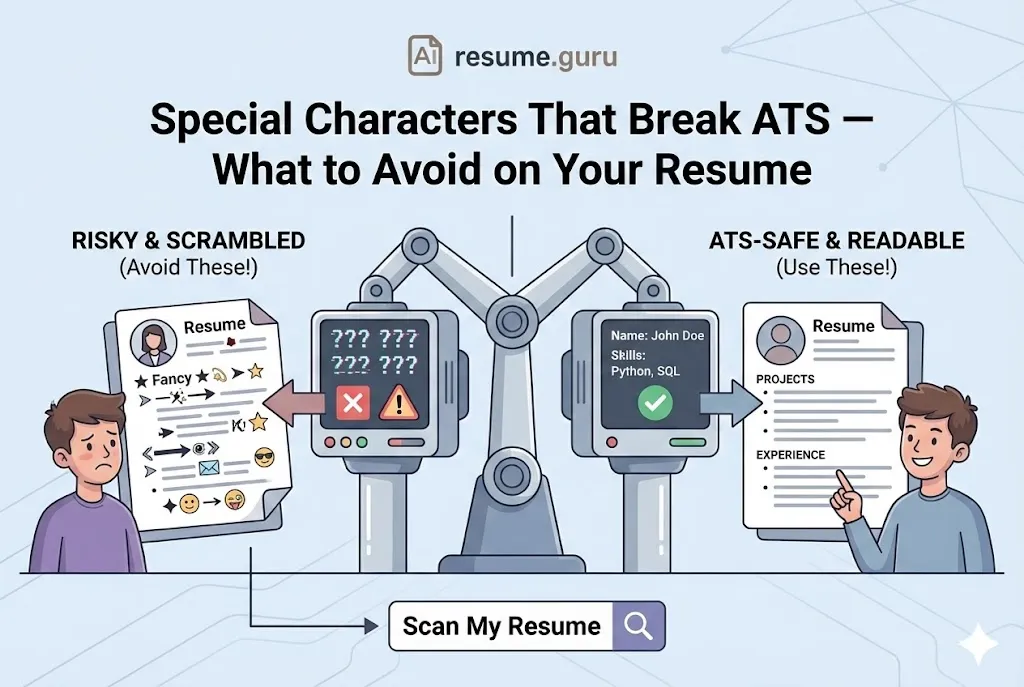
The short answer: the characters that most often break ATS parsing are decorative bullets (★, →, ➤), smart quotes, emojis, em dashes, and mathematical symbols (≤, ≥, ½). Replace them with standard bullets (• or -), straight quotes, and spelled-out equivalents. Headers, footers, text boxes, and multi-column tables break parsing just as reliably.
You spent hours making your resume look beautiful — custom bullet points, elegant dividers, that sleek pipe character separating your contact info. Then you applied to 50 jobs and heard nothing.
Here’s what probably happened: the ATS looked at your resume and saw this:
??? ??? ???
John Doe
Ph?ne: (555) ???-1234
??? Managed team of 10
Your design masterpiece became an unreadable mess. If you want to know whether yours is doing this right now, score your resume now and check the parsing findings.
TL;DR
- Standard bullets (• or -) and basic punctuation are ATS-safe
- Decorative symbols, fancy fonts, and complex formatting often break parsing
- Headers, footers, text boxes, and tables are high-risk elements
- Test your resume with an ATS-friendly scanner before submitting
- Scan your resume for ATS compatibility →
Why Special Characters Cause Problems
Cause of ATS parsing failures
Complex tables, text boxes, and special characters are the top reasons resumes get scrambled.
Source: Jobscan ATS research, 2024
Applicant Tracking Systems are essentially text parsers. They’re looking for:
- Your name
- Contact information
- Job titles and companies
- Dates of employment
- Skills and keywords
When they encounter a character they don’t recognize, three things can happen:
- The character disappears — “10+ years” becomes “10 years”
- The character becomes gibberish — ”→” becomes ”???” or “→”
- The entire section gets skipped — Your beautifully formatted skills section vanishes
None of these are good.
The Unsafe Characters List
Decorative Bullet Points (High Risk)
| ❌ Avoid These | ✅ Use These Instead |
|---|---|
| ★ ☆ ✦ ✧ | • (standard bullet) |
| → ➤ ➜ ▸ | - (hyphen) |
| ☑ ☐ ✓ ✗ | • or numbered lists |
| ⏺ ◆ ◇ ● | • (filled circle) |
| — (em dash) | - (hyphen) or – (en dash) |
Why This Matters
These decorative bullets might look identical in your Word document and on your screen. But ATS software often maps them to completely different character codes — or nothing at all.
Problematic Punctuation
| Character | Risk Level | Alternative |
|---|---|---|
| ” ” (smart quotes) | Medium | ” ” (straight quotes) |
| ’ ’ (smart apostrophes) | Medium | ’ (straight apostrophe) |
| … (ellipsis character) | Low | … (three periods) |
| – (en dash) | Low | - (hyphen) |
| — (em dash) | Medium | - or — |
| (pipe) | Medium-High |
Symbols That Often Break
Avoid These Symbols
- 📧 📱 📍 (emojis)
- © ® ™ (legal symbols — usually unnecessary anyway)
- ¢ £ € ¥ (currency symbols — spell out “USD” or “EUR”)
- ≤ ≥ ≠ (math symbols — use “less than,” “greater than”)
- ½ ¼ ¾ (fractions — use “50%,” “25%“)
Formatting Elements That Cause Issues
It’s not just individual characters. Entire formatting structures can break ATS parsing. The simplest way to avoid all of them at once is to browse ATS-safe templates that never use headers, text boxes, or multi-column tables.
Headers and Footers
The Problem
Many ATS systems skip header and footer content entirely. If your contact information is in the header, the ATS might not capture it — and the recruiter won’t know how to reach you.
Solution: Keep all important information in the main body. Use regular text formatting for your name and contact details.
Text Boxes
Text boxes are essentially invisible containers. ATS often:
- Parse them out of order (your contact info appears at the end)
- Skip them entirely
- Scramble the content with the main text
Solution: Never use text boxes. Format everything as standard text.
Tables
Tables are tricky because:
- Some ATS read left-to-right, ignoring columns
- Some read top-to-bottom within each column
- Some just give up
| What You Designed | What ATS Might See |
|---|---|
| Marketing Manager | ABC Corp | 2020-2023 | Marketing Manager ABC Corp 2020-2023 |
| Skills: SEO | Content | Analytics | Skills: SEO Content Analytics (or scrambled) |
| Two-column resume layout | Content from both columns jumbled together |
Solution: If you must use tables for layout, keep them simple. But single-column layouts are always safest.
Multi-Column Layouts
Two-column and three-column resumes look professional, but they’re parsing nightmares.
Warning
An ATS might read your left column first (all of it), then your right column. Your chronological work history becomes a confusing soup of unrelated information.
Solution: Use single-column layouts for ATS-heavy applications. Save the creative layouts for roles where you’re handing the resume directly to a human.
Safe Formatting: What Works
Font Choices
ATS-Safe Fonts
- Arial
- Calibri
- Helvetica
- Times New Roman
- Georgia
- Verdana
- Cambria
Fonts to Avoid
- Decorative or script fonts
- Custom or unusual fonts
- Fonts with special characters (like webdings)
- Non-standard sizes (stick to 10-12pt for body, 14-16pt for headings)
Safe Bullet Points
The safest options:
- Solid circle: • (U+2022)
- Hyphen: -
- Asterisk: * (though less common)
To insert these in Word or Google Docs:
- Type
Alt+7on Windows for • - Use the standard bullet list button
- Just type a hyphen and space
Safe Section Dividers
Instead of fancy line graphics:
---                          (three hyphens)
═══════════════════════      (avoid)
••••••••••••••••••••••       (avoid)
________________________     (underscores work)
Simple horizontal rules created with section breaks or three dashes are universally compatible.
ATS-Safe Character Cheat Sheet (Copy-Paste Reference)
Bookmark this. Every character below is safe to use on any ATS in 2026:
| Purpose | Safe Characters | Notes |
|---|---|---|
| Bullet points | • (U+2022) or - (hyphen) | Use toolbar button in Word/Docs for safest results |
| Separators | , (comma) or | (pipe) | Pipe is safe in modern ATS; comma is universally safe |
| Quotes | " " (straight double) and ' (straight single) | Turn off smart quotes in Word: File → Options → Proofing → AutoCorrect → uncheck smart quotes |
| Dashes | - (hyphen) or – (en dash) | Avoid em dashes (—) in date ranges |
| Ampersand | & or 'and' | Both are safe; use & for space efficiency |
| Parentheses | ( ) | Safe everywhere — use for date ranges, clarifications |
| Forward slash | / | Safe — useful for 'and/or', date formats |
| Percentage | % | Safe — use for quantified achievements |
| Dollar/currency | $ £ € | Safe for amounts — '$500K' parses correctly |
| Plus sign | + | Safe — '10+ years' works in all ATS |
| At sign | @ | Safe — email addresses parse correctly |
| Hash/number sign | # | Safe — but avoid using as decorative element |
How to Turn Off Smart Quotes (The #1 Hidden Culprit)
Smart quotes (” ” and ’ ’) look nearly identical to straight quotes (” ’ ”) on screen but have different character codes. Many ATS systems convert them to gibberish. Here’s how to disable them:
- 1
Microsoft Word
File → Options → Proofing → AutoCorrect Options → AutoFormat As You Type → Uncheck 'Straight quotes with smart quotes'
- 2
Google Docs
Tools → Preferences → Uncheck 'Use smart quotes'
- 3
Mac system-wide
System Settings → Keyboard → Text Input → Edit → Turn off 'Use smart quotes and dashes'
- 4
Quick fix for existing documents
Find and Replace: search for " (smart) and replace with " (straight). Do the same for single quotes.
How Different ATS Systems Handle Characters
Not all ATS systems are equally strict. Here’s what the major platforms handle well — and what trips them up:
| ATS System | Character Handling | Common In |
|---|---|---|
| Workday | Handles most Unicode well. Strips formatting but preserves text. Tables may scramble. | FTSE 100, Fortune 500, large corporates |
| Greenhouse | Modern parser — handles bullets, pipes, en dashes. May strip images and complex tables. | Tech companies, startups |
| Lever | Good Unicode support. Struggles with multi-column PDFs and text boxes. | Tech, mid-market companies |
| iCIMS | Moderate — handles standard characters but can strip decorative bullets. PDF parsing varies. | Healthcare, retail, large enterprises |
| Taleo (Oracle) | Older parser — strictest character handling. Smart quotes and decorative bullets often break. | Government contractors, legacy enterprise |
| Oleeo | Similar to Taleo. Conservative parsing. Stick to ASCII for safety. | UK public sector, NHS, universities |
When You Don't Know Which ATS They Use
If you can’t identify the employer’s ATS, format for the lowest common denominator: no decorative characters, no tables, no text boxes, standard fonts. A resume that passes Taleo will pass everything.
The safest approach is to always use ATS-friendly fonts, proper margins, and the characters from the cheat sheet above. Then use our Keyword Scanner to verify your resume parses correctly against a specific job description. Applying in Europe adds another layer — the European CV format & Europass guide covers what those systems expect.
The File Format Question
.docx (Word)
Pros
- Most universally compatible with ATS
- Easy for recruiters to annotate
- Text is easily extractable
- Formatting is predictable
Cons
- Can look different on different computers
- Formatting may shift if fonts aren't installed
Pros
- Consistent appearance everywhere
- Formatting is locked in place
- Modern ATS handle PDFs well
- Harder to accidentally edit
Cons
- Older ATS may struggle to parse
- Some PDFs from image programs aren't text-based
- Can't be easily annotated
The Verdict
If the job posting specifies a format, use that.
If it doesn’t:
- Apply with .docx for maximum ATS compatibility
- Or use a PDF created from Word/Google Docs (not Canva or InDesign)
- Never submit image-based PDFs (scan test: can you highlight the text?)
Design-first tools are the usual source of image-based exports, so it’s worth a look at how they handle this — compare against Canva before you export from one.
How to Test Your Resume
Before submitting, test your resume for ATS compatibility — or sidestep the problem and rebuild it in an editor that only emits ATS-safe characters, where bullets, dashes, and quotes are already normalised on export.
- 1
Copy-paste test
Copy your entire resume and paste it into Notepad (Windows) or TextEdit (Mac, plain text mode). If it looks scrambled, ATS will see the same thing.
- 2
Use an ATS scanner
Our Keyword Scanner checks both keyword matching and parsing compatibility.
- 3
Check the plain text version
In Word, save as .txt file and review. Every section should be readable.
- 4
Use our Bullet Point Generator
Create properly formatted experience bullets that are ATS-safe by design.
Before and After: Real Examples
Contact Info Section
Before (Risky):
JOHN DOE
📧 john@email.com | 📱 (555) 123-4567 | 📍 New York, NY
linkedin.com/in/johndoe ★ github.com/johndoe
After (ATS-Safe):
JOHN DOE
john@email.com | (555) 123-4567 | New York, NY
linkedin.com/in/johndoe | github.com/johndoe
Skills Section
Before (Risky):
◆ Python ◆ JavaScript ◆ SQL ◆ React
→ Machine Learning → Data Visualization
☑ Agile ☑ Scrum ☑ JIRA
After (ATS-Safe):
Languages: Python, JavaScript, SQL
Frameworks: React, Node.js
Skills: Machine Learning, Data Visualization, Agile, Scrum
Tools: JIRA, GitHub, AWS
Work Experience Bullets
Before (Risky):
➤ Led team of 10+ engineers
➤ Increased revenue by $500K+
➤ Reduced costs by ≈25%
After (ATS-Safe):
• Led team of 10+ engineers
• Increased revenue by over $500K
• Reduced costs by approximately 25%
Quick Reference Checklist
ATS-Safe Resume Checklist
- Using standard bullets (• or -) only
- No emojis or decorative symbols
- Contact info is in the main body, not header/footer
- No text boxes or floating elements
- Single-column or simple two-column layout
- Standard fonts (Arial, Calibri, Times New Roman)
- Straight quotes instead of smart quotes
- File saved as .docx or text-based PDF
- Copy-paste test completed successfully
Your Move
Your resume can be both professional-looking and ATS-friendly — you don’t have to sacrifice design for compatibility. The key is knowing which elements are safe and which are landmines.
The formatting stack that works everywhere:
- Standard bullets (• or -) and ATS-safe fonts (Calibri, Arial)
- Proper margins and spacing (1-inch, 11pt, 1.15 line spacing)
- Single-column layout with no text boxes
- Straight quotes, hyphens, and standard punctuation
- Strong action verbs and quantified achievements — not symbols — to make your content stand out
Want to check if your current resume passes ATS? Our Keyword Scanner analyses both keyword matching and parsing compatibility. Or use our Bullet Point Generator to create ATS-safe achievement statements from scratch.
For more on what ATS score you need and which keywords to include by industry, see our dedicated guides.
Is your resume ATS-safe? Find out in 30 seconds
Our Keyword Scanner checks your resume against any job description — keyword matches, formatting issues, and ATS compatibility. Free, no signup required.
Scan My Resume FreeRelated Resources
- ATS-Friendly Resume Fonts — Fonts that pass every ATS
- Resume Margins & Spacing — Exact formatting settings for ATS
- ATS Score Guide — What score you need to pass filters
- Resume Abbreviations Guide — How to format credentials for ATS
- Hidden Keywords Myth — Why keyword tricks backfire
- PDF vs Word Resume — Best file format for ATS
- Single vs Double Column — Layout choices and ATS impact
- Keyword Scanner — Check ATS compatibility
- Bullet Point Generator — Create ATS-safe bullets
- Resume Templates — Pre-built ATS-friendly designs
- Resume Editor — Builds resumes with ATS-safe characters only
Frequently Asked Questions
What characters should I avoid on my resume?
Avoid decorative bullets (★, →, ➤), pipes (|) in older systems, smart quotes (""), emojis, and symbols that aren't standard ASCII. Stick to basic bullets (•, -) and standard punctuation.
Can I use tables on my resume?
Use tables cautiously. Some ATS can parse simple tables, but many scramble the content. If you must use tables, test with an ATS scanner first. Single-column layouts are safest.
What's the best file format for ATS?
Word (.docx) is most universally compatible. Modern ATS also handle PDF well, but some older systems struggle with PDFs. When in doubt, submit .docx unless the job posting specifies otherwise.
Do headers and footers work with ATS?
Often no. Many ATS ignore content in headers and footers. Keep your contact information in the main body of the resume, not in header fields.
Do US companies use different ATS than international companies?
Yes. US companies commonly use Workday, Greenhouse, Lever, and iCIMS. These modern ATS handle most standard formatting well. However, government contractors often use older systems with stricter character requirements.
Which special characters break UK ATS systems?
UK ATS systems (like Oleeo and Tribepad) have similar limitations. Avoid smart quotes, decorative bullets, and non-ASCII characters. The £ symbol is safe, but use 'GBP' in salary fields to be safe.
Are emojis okay on resumes for creative jobs?
No. Even for creative roles, emojis break ATS parsing and look unprofessional to most recruiters. Show creativity through your portfolio and achievements, not symbols on your resume.
Can I use the pipe character (|) to separate contact info?
It works in most modern ATS systems (Workday, Greenhouse) but can break older ones. Use it for contact info separation but avoid it elsewhere. Commas are the safest universal separator.
Do bullet points from Google Docs transfer safely to ATS?
Standard Google Docs bullet points (using the toolbar button) are ATS-safe. Custom bullets inserted via special characters may not be. Stick to the default bullet list formatting.
What about accented characters like é, ñ, or ü on a resume?
Accented characters are generally safe in modern ATS for names and proper nouns (e.g., 'José', 'résumé'). They're part of standard Unicode. However, avoid using them decoratively.
Put this into practice
You have the theory. These take a few minutes and work on the resume you already have.